
A comparison table can do a lot of work for you, but only if you can see what people click. Tracking GA4 comparison table clicks shows which buttons, links, and rows pull attention, and which parts of the table get ignored.
That data matters on affiliate sites, review pages, and CRO tests. A table with strong clicks might need better offers, a clearer label, or a new layout. A table with weak clicks might need a tighter headline or a stronger CTA.
The cleanest setup uses Google Tag Manager, clear event names, and a small set of parameters that explain each click. Once that’s in place, the table stops being guesswork and starts becoming a measurable part of the page.
Decide what counts as a table click
Start by defining the actions you want to measure. In most comparison tables, those actions fall into three groups: CTA buttons, text links, and clickable rows.
Treat each user action as one event. That keeps your GA4 data clean and makes reporting easier later. GA4 already tracks some outbound clicks through enhanced measurement, but it won’t tell you which table row, product, or cell drove the action.
For most sites, a single custom event like comparison_table_click is the best default. Then use parameters to split the context. If you need a separate view of row clicks versus CTA clicks, add a click_type parameter with values like row, button, or link.
If you’re still shaping the table itself, affiliate comparison table templates can help you decide where each CTA belongs before you instrument it.
A simple parameter set looks like this:
| Parameter | Example value | Why it helps |
|---|---|---|
table_name | best-email-tools-2026 | Identifies the table |
row_name | row-2 | Separates one row from another |
column_name | pricing | Shows which cell got the click |
product_name | ConvertKit | Connects the click to the offer |
destination_url | https://example.com/signup | Shows where the click went |
click_text | Start free trial | Captures the visible CTA |
Use these fields consistently. Then your report can answer simple questions, like which product gets the most clicks, which CTA text performs best, and whether a row click beats a button click.
Set up tracking in Google Tag Manager
The most maintainable option is GTM plus stable table data. That usually means data attributes, a consistent table class, or a dataLayer push from the page. It takes a little more setup than a plain click trigger, but it holds up better when the table changes.
| Method | Setup effort | Maintainability | Best use |
|---|---|---|---|
| GTM click trigger only | Low | Medium | Simple tables with stable HTML |
| GTM + dataLayer | Medium | High | Reusable comparison tables |
| Direct gtag code | Low at first, high later | Low | One-off tests or tiny sites |
The GTM route is the safer choice for most affiliate and review sites. It gives you room to track the same table across multiple pages without rebuilding your tags each time. For a helpful second opinion on setup choices, two ways to track clicks in GA4 is a solid reference.
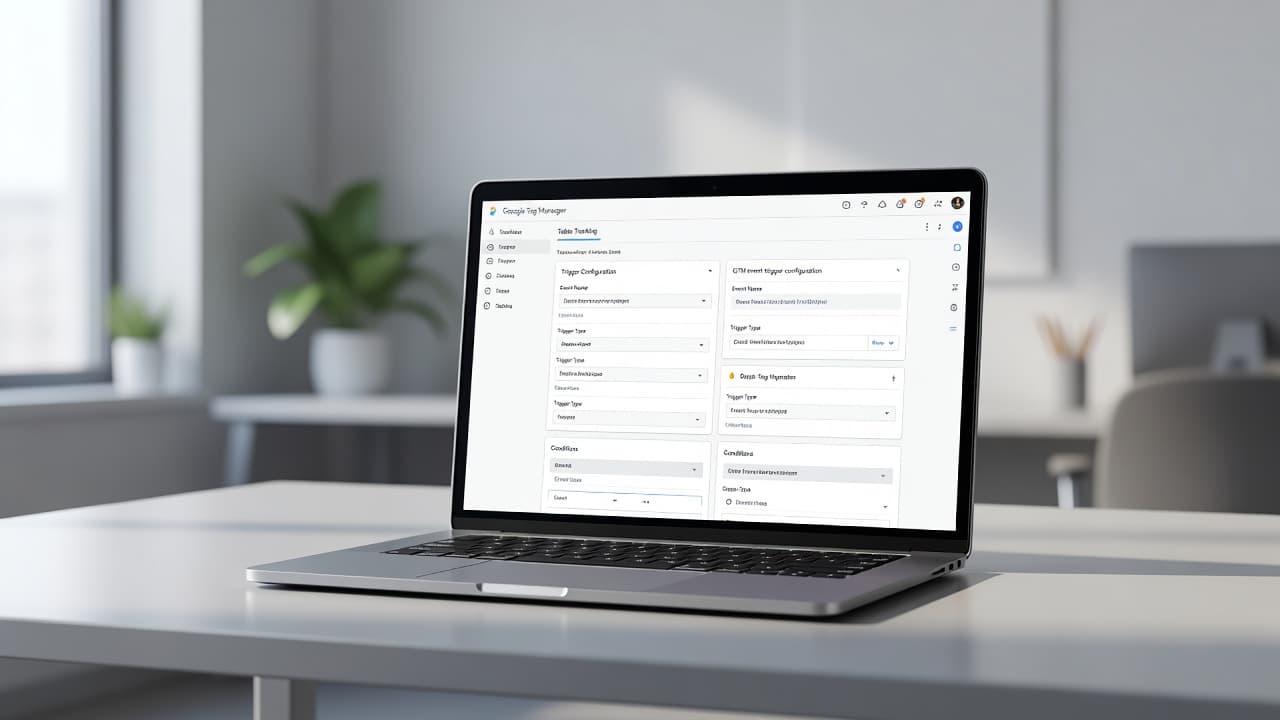
A practical GTM setup usually follows this path:
- Add stable attributes to the table markup, such as the table name, product name, and destination URL.
- Create GTM variables that read those attributes from the clicked element or its nearest row.
- Build a Just Links trigger for links and a Click Element trigger for row-level clicks.
- Fire one GA4 event tag named
comparison_table_click. - Map your parameters into the tag, including
table_name,row_name,column_name,product_name,destination_url, andclick_text.
One event name, paired with clean parameters, is easier to manage than a separate event for every tiny table variation.
If you want a screen-by-screen walkthrough while you build, this GA4 click tracking video is a useful companion.
For link-heavy tables, Simo Ahava’s guide on categorizing all link clicks is also worth a look. It’s especially helpful when your table mixes buttons, inline links, and affiliate links in the same layout.
Validate everything in GA4 DebugView
Testing matters as much as the setup itself. A tag that fires in GTM but never lands in GA4 gives you fake confidence, which is worse than having no data at all.
Start in GTM Preview mode. Click every table element you care about, then check whether your trigger fires on the right element. If a row click opens the wrong link, or an inner button gets counted as the row, fix the selector before you move on.
Next, open GA4 DebugView and repeat the clicks. Look for three things:
- The event name appears as
comparison_table_click. - The parameters show the right values for
table_name,product_name, anddestination_url. - The click you made matches the element GA4 received.
If the event appears without parameters, the tag is firing, but the variables are wrong. If the wrong row name shows up, your DOM lookup is probably too broad. If nothing appears in DebugView, confirm that Debug Mode is active and that the GA4 tag is sending to the correct property.
Keep one more habit in place. Test at least one button click, one text link, and one row click before publishing. Those three checks catch most table-tracking mistakes fast.
Build a simple report that shows table performance
Once the data is flowing, turn it into something you can use. A Free form exploration in GA4 is the easiest place to start.
Create an exploration with these dimensions:
table_nameproduct_namerow_nameclick_textdestination_urlclick_type
Then add these metrics:
- Event count
- Total users
- Views
- Key events, if you decide to mark the click event as one
Filter the exploration to event_name = comparison_table_click. After that, break the data down by page path or table_name. This makes it easy to see which page or table gets the most clicks.
For analysis, look at more than raw click count. A table with fewer views and more clicks may be doing a better job than a table with more traffic and weak engagement. Also check click_text, because the same table can produce very different results when the CTA label changes.
If you want a quick decision view, rank the rows by product_name and event count. That tells you which offers attract the most interest. Then compare that with downstream conversions in your affiliate platform or landing page analytics.
Common tracking mistakes that blur the data
The most common mistake is tracking the row and the button at the same time. That doubles the numbers and makes the table look stronger than it is. Pick one user action per click.
Another problem is vague naming. cta_click does not tell you much six months later. comparison_table_click with a clear click_type and product_name tells a much better story.
Watch out for unstable selectors too. If your table layout changes often, class-based triggers can break without warning. Data attributes are safer because they stay tied to the content, not the styling.
Finally, don’t skip custom dimension setup in GA4. Parameters like table_name and product_name can fire correctly and still stay hidden in reports until you register them.
Conclusion
Tracking table clicks in GA4 is mostly about clean structure. Use one clear event, add context with parameters, and test every click path before you trust the numbers.
That approach gives you useful answers fast. You’ll know which offers get attention, which CTAs work, and which comparison tables need a rewrite.
Once the setup is stable, your table stops being a static page block and starts acting like a measurable sales asset.